Multiple Instances & Profiles
Profiles and the --profile / --port options are new in ScoreSight 0.2.0.
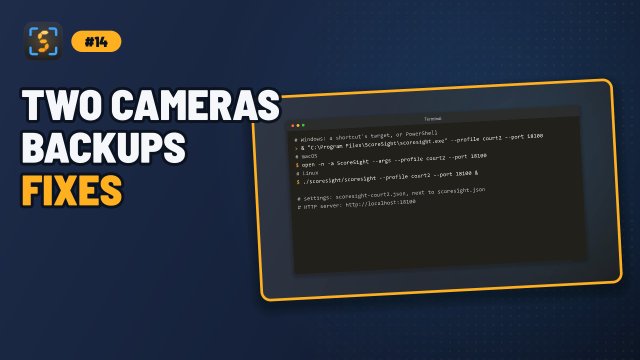
One ScoreSight window reads one source. To read two cameras, for example the main scoreboard and a separately mounted shot clock, run two instances of ScoreSight. Give each instance its own profile (an independent set of settings) and its own HTTP port.
On this page
What a profile is
By default, ScoreSight stores everything (source, boxes, crop and 4-corner settings, outputs) in one settings file, scoresight.json. Starting ScoreSight with a profile name makes it use scoresight-<name>.json in the same folder instead. Profiles are completely independent of each other and of the default settings.
| Started with | Settings file |
|---|---|
| (no profile) | scoresight.json |
--profile shotclock |
scoresight-shotclock.json |
--profile court2 |
scoresight-court2.json |
The folder is listed in Settings, Files & Command Line. A profile is created the first time you start ScoreSight with a new name. Use simple names made of letters, digits, dots, dashes and underscores. The window title shows the active profile, for example ScoreSight - v0.2.0 [shotclock].
Command-line options
| Option | Meaning |
|---|---|
--profile NAME |
Use the settings file scoresight-NAME.json. The environment variable SCORESIGHT_PROFILE=NAME does the same. |
--port N |
Serve the HTTP API on port N instead of 18099. |
Two instances cannot share an HTTP port. If the port is already taken, the second instance logs HTTP server: port ... is already in use or not available and runs without its HTTP server. Closing one instance never stops another instance’s server. Give every instance a different --port. The HTTP server page of each instance (in its Outputs list) shows the links for its own port, and its HTTP server row shows ■ Not running: port … is in use if its port was taken.
Starting a second instance
The examples start a main instance with the default settings, plus a shotclock instance on port 18100.
Windows
Create a shortcut for each instance: right-click the desktop > New > Shortcut, and use a target such as:
"C:\Program Files\ScoreSight\scoresight.exe" --profile shotclock --port 18100
Or from PowerShell:
& "C:\Program Files\ScoreSight\scoresight.exe" --profile shotclock --port 18100
macOS
macOS normally opens only one copy of an app. Use open -n to start another instance, and pass the options after --args:
open -n -a ScoreSight --args --profile shotclock --port 18100
Linux
./scoresight/scoresight --profile shotclock --port 18100 &
Planning a two-camera setup
| Instance 1 (default) | Instance 2 (--profile shotclock --port 18100) |
|
|---|---|---|
| Source | Main scoreboard camera | Shot clock camera |
| Boxes | Home Score, Away Score, Time, Period, Fouls | Shot Clock |
| HTTP API | http://localhost:18099/json |
http://localhost:18100/json |
| Text files | D:\scores\main |
D:\scores\shotclock |
Things to keep separate:
- Sources: most USB cameras can be opened by only one application at a time. Give each instance its own camera, or share a feed through NDI.
- Output folders: text files are named after the boxes, so two instances writing Home Score.txt to the same folder would overwrite each other. Use a different folder per instance.
- OBS text sources: the standard fields always update the same OBS source names (see OBS Studio). Don’t use the same standard field in two instances that both talk to the same OBS.
- vMix / UNO mappings: map each instance’s fields to different title fields or commands.
To set up a second profile quickly, configure the first instance, then use File > Export field layout…. Start the new profile and use File > Import field layout… to copy the boxes. Then adjust the boxes and set the source and outputs for the new profile.
Separate log folders (optional)
All instances write their logs to the same log folder by default. To keep them apart, set SCORESIGHT_LOG_DIR for an instance, for example on Windows:
$env:SCORESIGHT_LOG_DIR = "D:\scoresight-logs\shotclock"
& "C:\Program Files\ScoreSight\scoresight.exe" --profile shotclock --port 18100
See Settings, Files & Command Line for all environment variables.
Alternative: combine cameras before ScoreSight
If you’d rather run a single instance, combine the camera feeds into one picture in OBS or vMix (for example side by side) and send it to ScoreSight through NDI or a virtual camera. Then put all boxes on that one picture. This uses less CPU, but each camera gets fewer pixels, and 4-corner correction applies to the whole picture.