TCP / UDP output
The TCP / UDP output sends the readings as text messages over a network socket. Many graphics systems take data this way: CasparCG, Chyron PRIME, Live Score, MagicSoft CG and Vizrt’s Viz Engine have presets, and a template lets you speak any other simple line protocol. ScoreSight connects to the receiving program, or, as a TCP server, waits for programs to connect to it.
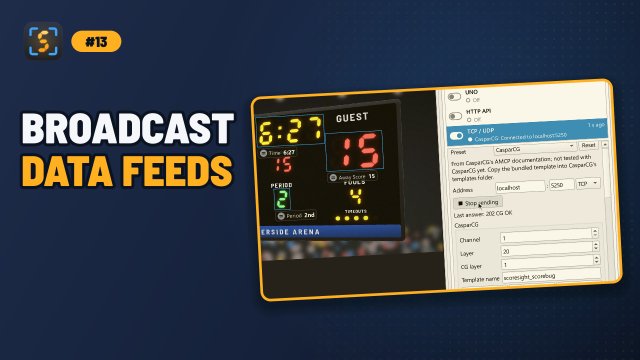
On this page
Setup
- Select TCP / UDP in the Outputs list (or click TCP in the status bar).
- Pick the receiving program in Preset. The preset sets the port, the template and the options for it. You can change all of them, and Reset sets the preset’s values again.
- Enter the Address of the computer the receiving program runs on (
localhostif it’s this computer) and its port. Some programs have no default port: use the one set in the program (see the presets below). For a program that connects to its data source instead, choose TCP server next to the port (see TCP server). - Check the names table: the name each field is sent as. An empty name leaves the field out.
- Click Start sending (or the switch of the TCP / UDP row).
The Preview shows what is sent for the current values (sample values before the first readings). Control characters are shown as symbols: ␍ is a carriage return, ␊ a line feed and ␀ a NUL character.
The TCP / UDP row of the Outputs list shows what happens:
| Status | Meaning |
|---|---|
| ● CasparCG: Connected to localhost:5250 | The connection is open. The time is when a value was last sent. Hover it for the receiver’s last answer |
| ◐ Connecting to 192.168.1.20:5250… | Opening the connection |
| ▲ Can’t reach 192.168.1.20:5250 · retrying | Nothing accepts the connection. ScoreSight tries again by itself, waiting a little longer each time (up to 5 seconds) |
| ▲ localhost:5250 answered “404 CG ERROR” | The receiver answered with an error code (CasparCG’s AMCP answers every command) |
| ▲ 192.168.1.20:5250 closes the connection right away | Something accepts the connection but closes it at once, again and again: usually the wrong port (another program’s, a web server’s). ScoreSight connects again, waiting a little longer each time |
| ▲ Enter the host and port | No port is set |
| ○ Off | Not started |
When the receiving program closes the connection (it was restarted, for example), ScoreSight reconnects by itself and sends the “on connect” message and every current value again.
TCP server: programs connect to ScoreSight
Some programs don’t wait for data: they connect to a data source themselves and read what it sends. For them, choose TCP server in the list next to the port. ScoreSight then listens on that port, on every network address of its computer, and up to 32 programs can connect at once:
- Choose TCP server. The Address becomes Listen on port: enter a free port, for example
5300. The note under the preset says where programs connect: other programs connect to 192.168.1.20:5300 (localhost:5300 on this computer). - Choose the template and the options as usual (the presets set the transport back to TCP: pick TCP server again after a preset).
- Click Start sending.
- In the other program, connect to the ScoreSight computer’s address and that port. Allow ScoreSight through the firewall of its computer for programs on other computers.
Each program that connects gets the “on connect” message and every current value, then each change (and every value again with Resend all every). A program that closes its connection is dropped, and one that stops reading for 2 seconds too. What the programs send to ScoreSight is shown as their last answer.
To try it, connect with a terminal: nc localhost 5300 (macOS, Linux) or telnet localhost 5300 (Windows, with the Telnet client turned on). The values scroll by as they change.
| Status | Meaning |
|---|---|
| ● Listening on port 5300 · 2 programs connected | Programs are connected. Hover it for their addresses and the last answer |
| ◐ Listening on port 5300 · nothing connected | The port is open, waiting for a program to connect |
| ■ Can’t listen on port 5300 | Another program uses the port, or the system doesn’t allow it: choose another one. ScoreSight tries again by itself |
| ▲ Enter a port | No port is set |
Presets
None of the presets has been tested with the real product yet. They follow the product’s documentation or, where noted, another vendor’s public documentation. Everything a preset sets stays editable, so you can adapt it if your version expects something else. Reports of what works are welcome on the issue tracker.
| Preset | Transport, port | What is sent | Source |
|---|---|---|---|
| CasparCG | TCP 5250 | CG 1-20 ADD 1 "scoresight_scorebug" 1 "<data>" on connect, then CG 1-20 UPDATE 1 "<data>" with every field, CR LF |
CasparCG’s AMCP documentation |
| Chyron PRIME | TCP, the port set in PRIME | P\UPDATE\1\*\<name>\<value>\\ per changed field, CR LF, ISO-8859-1 |
Chyron’s Intelligent Interface documentation |
| Live Score | TCP, the port set in Live Score | {"type":"ocr", "values":{...}} with every field, LF |
Another OCR vendor’s public guide (untested) |
| MagicSoft CG | TCP 2034 (the example port) | [name]=value per changed field, CR LF |
Another OCR vendor’s public guide (untested) |
| Vizrt (Shared Memory) | TCP or UDP, the port set in Viz | name|value and a NUL per changed field |
Vizrt’s Viz Engine documentation |
| Custom | Your choice | {field}={value} per changed field, LF, to start from |
CasparCG
ScoreSight loads a template with CG ADD when it connects, then sends every change with CG UPDATE, as CasparCG’s AMCP protocol describes. ScoreSight comes with a ready-made HTML scorebug template.
- Copy the template into CasparCG’s templates folder. With the CasparCG preset selected, click Copy template… and choose the folder: the
<template-path>incasparcg.config(the AMCP commandINFO PATHSshows it). The file isscoresight_scorebug.html; it is also in thecasparcgfolder of ScoreSight’s installation (in the source code,casparcg/scoresight_scorebug.html). - Set the Channel, Layer and CG layer to use (1, 20 and 1 by default) and the Template name (
scoresight_scorebug, the file name without.html). - Enter the CasparCG server’s address. The port is 5250, CasparCG’s AMCP port in its default configuration.
- Click Start sending. ScoreSight connects and sends
CG 1-20 ADD 1 "scoresight_scorebug" 1 "<data>", which loads the template and plays it (the1before the data is play on load). Then each change sendsCG 1-20 UPDATE 1 "<data>"with every field.
While the output runs, Load sends the CG ADD again (for example after someone cleared the layer), Play sends CG 1-20 PLAY 1 and Stop CG 1-20 STOP 1, which animates the scorebug out.
The data is templateData XML by default, which every CasparCG version and template type (HTML and Flash) understands:
<templateData>
  <componentData id="HomeScore"><data id="text" value="21"/></componentData>
  <componentData id="Time"><data id="text" value="04:32"/></componentData>
</templateData>
Each field is a componentData whose id is its name in the names table. CasparCG’s preset uses names without spaces (HomeScore, ShotClock), because Flash templates bind the ids to instance names. CasparCG Server 2.1 and later can take JSON instead: replace {xml} with {json} in the template and the “on connect” message, and the data becomes {"HomeScore": "21", "Time": "04:32"}. Inside the quotes of an AMCP command, quotes, backslashes and line breaks are escaped (\", \\, \n); the AMCP (CasparCG) escaping does that.
The bundled template (scoresight_scorebug.html) shows a scorebug with the home and away scores, the period, the clock, the shot clock and the fouls, and lists any other field in a line under it. It takes both XML and JSON. It matches field names without case, spaces or punctuation, so HomeScore, Home Score and home_score are the same field:
| Shown as | Field names |
|---|---|
| Home score, away score | home score, away score |
| Clock | time, game clock or clock |
| Period | period, quarter, half or inning |
| Shot clock | shot clock |
| Fouls | home fouls, away fouls |
| Team names | home name or home team, away name or away team (HOME and AWAY otherwise) |
The template implements the functions CasparCG calls: update(data), play() (slides in), stop() (slides out), next() and remove(). Its design is 1920×1080, scaled to the channel’s size. Edit its CSS to change the look. To preview it in a browser without CasparCG, open scoresight_scorebug.html?demo (sample values) or scoresight_scorebug.html?poll=http://localhost:18099 (the live readings from ScoreSight’s HTTP server).
CasparCG answers every command, for example 202 CG OK. ScoreSight shows the last answer in the page and in the tooltip of the Outputs row; an error answer such as 404 CG ERROR (the template isn’t in the templates folder) or 401 CG ERROR (no such channel) turns the row orange. Turn on Resend all every (1 s, for example) if the template may be reloaded while ScoreSight runs: a reloaded template starts empty until the values change.
Chyron PRIME
ScoreSight sends Intelligent Interface P\UPDATE commands, as described in Chyron’s PRIME Automation: Intelligent Interface P Commands:
P\UPDATE\1\*\Home Score\21\\
That is: update, on channel 1, every scene (*) that has an object named Home Score, with the value 21. The command ends with two backslashes and a carriage return and line feed. Each changed field is sent as its own command.
- In PRIME, open View › Automation Settings and add an Intelligent Interface connection. Its connection type is TCP/IP and its encoding Western European (ISO-8859-1) by default; ScoreSight’s preset uses the same encoding. Turn on Connect on Startup if you like, and Enable the connection (it then waits for a connection).
- In ScoreSight, enter the PRIME computer’s address and the connection’s port. Chyron documents no default port (Lyric setups often use 23).
- Name the objects (or parameters) of your scene like the names in ScoreSight’s names table: by default the field names, such as
Home Score. - Click Start sending.
Edit the template to target something else: P\UPDATE:Program\1\*\{field}\{value}\\ updates only the scenes playing on Program, P\UPDATE\2\*\... channel 2, and P\UPDATE\1\1000\... only scene 1000. Backslashes separate the fields of a command, and Chyron documents no way to send one inside a value, so the Chyron fields escaping turns them into / (as PRIME does with file paths) and line breaks into spaces. PRIME answers each command (for example with an asterisk and the command); ScoreSight shows the last answer.
Live Score
Live Score (live-score-app.com) can take readings through its Scoreboard OCR input (Professional edition, version 1.8.14 or later). Live Score listens on a port, and ScoreSight connects to it and sends one JSON object per message, ended by a line feed:
{"type":"ocr", "values":{"ScoreHome": "21", "GameClock": "3:12"}}
This format comes from the public guide of another OCR application, not from Live Score’s own documentation, and it hasn’t been tested with Live Score. If it doesn’t work with your version, adapt the template, and please tell us.
- In Live Score, open Input › Scoreboard OCR › OCR Setup. Activate the input, set a port, and note the field names the dialog lists for your sport.
- In ScoreSight, enter the Live Score computer’s address and that port.
- In the names table, enter Live Score’s field names. The preset suggests
GameClock(Time),ShotClock(Shot Clock),ScoreAway(Away Score) andScoreHome(Home Score). The first three appear in Live Score’s and the other guide’s examples;ScoreHomeis inferred fromScoreAway. Check every name in the OCR Setup dialog. - Click Start sending. The OCR Setup dialog’s Start Test shows the data that arrives. Then close it and press Live Score’s blue start button.
Every message carries every field. Live Score doesn’t display ten updates a second, so the preset sends at most four messages a second (At most every 0.25 s): the latest values go out together.
MagicSoft CG
MagicSoft CG runs a socket server that replaces [name] tokens in its text items. ScoreSight sends a line per changed field:
[clock]=2:45
MagicSoft’s help doesn’t print the message syntax: this format comes from the public guide of another OCR application, and MagicSoft’s own sample macro files use the same [name]=value lines. It hasn’t been tested with MagicSoft CG.
- In MagicSoft CG, start the socket server in Tools › Options › Socket Communication (it should be started by default). The guide’s example address is
tcp://localhost:2034, which the preset uses, but MagicSoft’s default configuration has port pairs between 2610 and 2643: use a free pair’s port from that tab (see MagicSoft CG). - In a 2D text item, type the field’s name in brackets, for example
[home_score]or[clock], then use File › Refresh All projects. - In ScoreSight, check the names table: the preset sends lower-case names (
home_score,away_fouls), and Time asclock, because[time]is reserved by MagicSoft CG. - Click Start sending.
The guide doesn’t say which text encoding MagicSoft CG expects; the preset uses UTF-8 (the same as ASCII for digits and letters). Line breaks in a value become spaces.
Vizrt (Viz Engine)
Viz Engine’s Shared Memory input takes key|value pairs, each ended by a NUL character, over TCP or UDP, as described in the Viz Engine Guide (External Data Input). Several pairs can arrive in one packet; ScoreSight sends a pair per changed field:
HomeScore|21␀Time|3:12␀
- In Viz Configuration › Communication › Shared Memory, set a TCP Port (or UDP Port). Vizrt recommends no particular port.
- In ScoreSight, enter the Viz Engine computer’s address and that port, and choose TCP or UDP. Vizrt recommends keeping a TCP connection open, which ScoreSight does. A UDP datagram is sent per pair.
- The preset sends names without spaces (
HomeScore,ShotClock). To give the keys a path, edit the template, for examplescoresight/{field}|{value}. - In the scene, read the values from the shared memory map, for example with the ApplySharedMemory plugin and Control plugins whose field identifiers are the names (with the path as the memory base key).
- Click Start sending.
Engines keep these values only while they run: turn on Resend all every so that an engine started later gets them. A connection must be made to each Viz Engine.
Custom protocols
Choose Custom and write the template your receiver expects. For example, a program that reads name=value lines works with the default {field}={value} and a line feed. See the template syntax below.
These have no preset yet, but the template can express them. They are untested:
- Ross XPression (RossTalk): TCP port 7788,
TEMPLATEDATA <take id>:{field}:Text:{value}with CR LF, a message per field (replace<take id>with the take item’s ID, for example0002). Ross documentsTEMPLATEDATAwith a property name, but whether the text property is calledText, and how a value with colons (a clock such as04:30) is handled, isn’t documented. - Vizrt Datacenter (Socket Listener): UDP or TCP port 6000, One message with every field and the template
{json}.
Templates
A template is the text of a message, with placeholders in braces. Each line of the template is sent as a line, followed by the Line ending; empty lines are left out. Everything that isn’t a placeholder is sent as it is, so JSON braces need no escaping.
Send sets what a message holds:
- A message per changed field: the template is sent for each field whose value changed, with
{field}and{value}filled in. - One message with every field: the template is sent once for each change, with
{json}or{xml}holding every field’s last good value.
| Placeholder | Text |
|---|---|
{field} |
The field’s name, from the names table (a message per field) |
{value} |
The field’s value (a message per field) |
{json} |
Every field as a JSON object: {"Home Score": "21", "Time": "3:12"} |
{xml} |
Every field as CasparCG templateData XML (see CasparCG) |
{channel}, {layer}, {cg_layer}, {template} |
CasparCG’s channel, layer, CG layer and template name |
Only these words are placeholders: {other} stays as it is. The CasparCG settings show when a template uses their placeholders.
On connect is a message sent once after each connection, before the values (CasparCG’s CG ADD). It can use {json}, {xml} and the CasparCG placeholders. Empty: nothing is sent.
Escaping makes the text of each placeholder safe for the protocol, so that a value can’t end a line or a quoted string early:
| Escaping | What it does | Used by |
|---|---|---|
| None | Nothing | Live Score (its {json} is already valid JSON) |
| Line breaks to spaces | Line breaks and NUL become spaces | MagicSoft CG, Custom |
| JSON string | Quotes, backslashes and control characters as in a JSON string, for templates like {"name": "{field}", "value": "{value}"} |
|
| XML | & < > " ' and line breaks as XML entities |
|
| AMCP (CasparCG) | " → \", \ → \\, line breaks → \n |
CasparCG |
| Chyron fields | \ → /, line breaks become spaces |
Chyron PRIME |
| Leave out NUL | NUL characters are left out | Vizrt (Shared Memory) |
The escaping applies to every placeholder, {json} and {xml} too.
Line ending: CR LF (\r\n), LF (\n), CR (\r), NUL (\0) or none. Encoding: UTF-8, ISO-8859-1 (Latin-1), Windows-1252, UTF-16 LE or ASCII. A character the encoding can’t represent is sent as ?.
Options
- Also resend unchanged values: send a field’s value at every detection, even when it hasn’t changed. Off (the default): a value is sent when it changes. After Pause outputs, each field’s next value is sent once even if it is unchanged, as for vMix and UNO.
- At most every: the shortest time between two sends. The values that change meanwhile go out together, the latest ones. No limit (0) sends at once.
- Resend all every: send every value again this often, for a receiver that forgets them (a reloaded template, a restarted engine). Never (0) by default.
Values are sent only while new readings arrive, so Resend all every pauses too while there is no video source. Only good readings are sent (Success, and SameNoChange when resending), like the other push outputs; see Which readings are sent?.
Names
The names table has a row for each field and the name it is sent as ({field}, and the names in {json} and {xml}). Each preset has default names:
| Preset | Default names |
|---|---|
| CasparCG, Vizrt | Without spaces: HomeScore, ShotClock |
| MagicSoft CG | Lower case with _: home_score, and clock for Time |
| Live Score | ScoreHome, ScoreAway, GameClock, ShotClock; others as in ScoreSight |
| Chyron PRIME, Custom | The field names in ScoreSight: Home Score |
Edit the right column to change a name; an empty name leaves the field out. Names you edit are kept when you change the preset, and Reset names uses the preset’s names for every field again.
Troubleshooting
- ▲ Can’t reach … · retrying: check that the receiving program is running and listens on that port (its socket server, automation connection or input is enabled), and that the firewall of its computer allows the port.
- ▲ … closes the connection right away: the port belongs to something else (for example a web server), or the receiving program rejects the connection. Check the port in the receiving program.
- Connected, but nothing changes in the graphics: compare the names table with the names the receiving program expects (they are case-sensitive in most programs), and check the Preview. Watch the log (Tools › View log) for the receiver’s answers.
- An answer like
404 CG ERROR(CasparCG): the template isn’t in the templates folder, or the name, channel or layer is wrong. - Strange characters: set the Encoding the receiving program expects (Chyron PRIME uses ISO-8859-1 by default).
- UDP: there is no connection, so ScoreSight can’t tell whether the values arrive.
- ■ Can’t listen on port … (TCP server): another program, or another ScoreSight, listens on that port. Choose another port, in ScoreSight and in the program that connects.
- ◐ Listening … · nothing connected (TCP server): the other program hasn’t connected. Check the address and port it connects to, and the firewall of the ScoreSight computer.
The settings are stored in scoresight.json under tcp_output and tcp_mapping (see Settings, Files & Command Line).