Overlays.uno (UNO)
ScoreSight can update overlays.uno graphics directly through the UNO control app API.
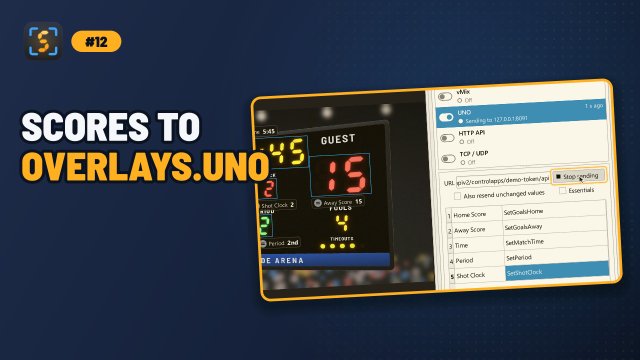
Setup
-
In overlays.uno, open your overlay’s control app and copy its API URL. It looks like:
https://app.overlays.uno/apiv2/controlapps/<token>/apiTreat this URL like a password: anyone who has it can control your overlay.
- In ScoreSight, select UNO in the Outputs list (or click UNO in the status bar) and paste the URL into URL. The URL takes effect when you press Enter or leave the field (spaces around it are ignored). Changing it while sending keeps the mapping and the running state.
- Check the mapping table: for each ScoreSight field, the right column holds the UNO command (or, in Essentials mode, the field ID) it should drive.
- Click Start sending (or the switch of the UNO row). The button changes to Stop sending; click it again to stop.
The UNO row of the Outputs list shows whether the values arrive: ● Sending to app.overlays.uno with the time of the last update, ◐ while it waits for a value that changed, ▲ Can’t reach app.overlays.uno · retrying when there’s no connection, and ■ with the HTTP error overlays.uno answered (see Troubleshooting). It never shows the token in your URL.
Mapping
By default, the standard fields map to these UNO scoreboard commands:
| ScoreSight field | UNO command |
|---|---|
| Time | SetMatchTime |
| Home Score | SetGoalsHome |
| Away Score | SetGoalsAway |
| Period | SetPeriod |
| any other field | none: it isn’t sent until you enter a command your overlay supports |
The available commands depend on the overlay. See the API description of your overlay’s control app in overlays.uno. Edit the right-hand column to change a mapping. Mappings are saved automatically.
In ScoreSight 0.2.0 and earlier, every other field was mapped to a command named after itself. Overlays answer an unknown command with HTTP 400, and the call still counts against your daily limit. If you edited the mapping table in an older version, those names may still be saved: clear the command of every field your overlay doesn’t use.
Essentials mode
For overlays that use UNO’s content fields (“Essentials”), tick Essentials and enter the Overlay ID (the UUID of the overlay). In this mode, the mapping column holds the field ID of each content field, and ScoreSight sends SetOverlayContentField commands.
What ScoreSight sends
One PUT request with a JSON body to the API URL for each field with a new value:
Standard mode:
{"command": "SetGoalsHome", "value": "65"}
Essentials mode:
{"command": "SetOverlayContentField", "id": "<Overlay ID>", "fieldId": "<mapping>", "value": "65"}
- Only new values are sent. Tick Also resend unchanged values (was Send Same?) to also resend unchanged values on every cycle.
- Fields whose mapping cell is empty are not sent.
- Requests are sent in the background with a 2-second timeout. If UNO is slow or unreachable, ScoreSight keeps only the latest value of each command, retries with an increasing delay, and sends the latest values when UNO responds again. Any 2xx response counts as success.
Call limits
overlays.uno counts every API call against your plan: about 10,000 calls a day on the Free plan (more on Plus), and a per-minute limit. Every call counts, including one with a command the overlay doesn’t know. A clock that changes every second uses 3,600 calls an hour on its own, so on the Free plan it uses up the day’s calls in about 2.8 hours.
ScoreSight helps you stay within the limits:
- It spaces out the calls. overlays.uno reports its limits in each answer (the
X-Singular-Ratelimit-*headers). ScoreSight reads the per-minute limit and never sends faster than it allows. Fields that change meanwhile are sent with their latest value. - It keeps refused values. When overlays.uno answers HTTP 429 (too many requests), ScoreSight keeps the latest value of each field and sends it when the limit resets (when the answer says, or after a short wait). A score that hit the limit is therefore corrected as soon as overlays.uno accepts calls again, even if it doesn’t change again. ScoreSight 0.2.0 and earlier dropped them.
- It shows the calls left today in the UNO row (Sending to app.overlays.uno · 9,512 calls left today), and warns when fewer than a tenth are left.
To use fewer calls, keep Also resend unchanged values off and Update on change on, clear the command of fields your overlay doesn’t use, and consider a box Format that drops tenths of seconds from the clock.
The sources disagree on the exact Free-plan limits (between 5,000 and 10,000 calls a day, and 25 to 100 a minute), which is why ScoreSight reads them from overlays.uno’s answers. The format of those headers isn’t documented: if ScoreSight can’t read them, it still keeps and resends refused values.
ScoreSight 0.2.0 removed the Rate Limit field of 0.1.x, which had no effect.
Troubleshooting
- Look at the UNO row of the Outputs list. It says, for example:
- ■ HTTP 401: check the UNO URL (or 403, 404): the URL is wrong or expired. Copy the API URL of your control app again.
- ▲ HTTP 429: overlays.uno’s call limit reached · retrying: the limit of your plan is used up. ScoreSight keeps the latest values and sends them when the limit resets; the row’s tooltip says when it tries next. See Call limits.
- ■ HTTP 400: overlays.uno doesn’t know a command: a field’s command isn’t one your overlay has. Check the table against the overlay’s API description, and clear the command of fields the overlay doesn’t use.
- ▲ Only 312 overlays.uno calls left today: see Call limits.
- ▲ Enter your UNO API URL: the URL field still holds the example URL.
- ▲ Can’t reach app.overlays.uno · retrying: no internet connection. ScoreSight sends the latest values when it’s back.
- The log (Tools > View log) has the details in lines that start with
UNO:, for exampleUNO: OutputError: UNO SetGoalsHome returned HTTP 401: .... Errors are logged at most once every 30 seconds. - Make sure the overlay supports the command you mapped, and that the values have the format the overlay expects (for example
mm:ssfor match time). Use the box’s Format setting to enforce it.