vMix Integration
ScoreSight updates text fields in vMix titles directly, through the vMix Web API (HTTP, served by vMix’s Web Controller on port 8088). Each new value is sent as an HTTP GET request that calls the vMix SetText function.
On this page
Use port 8088 (the Web Controller / HTTP API), not 8099. Port 8099 is vMix’s raw TCP API, which ScoreSight does not speak. ScoreSight 0.1.x and older defaulted to 8099 by mistake (#25, #55). ScoreSight 0.2.0 defaults to 8088, and the first time it starts it changes a saved 8099 to 8088 (once: a port you set later is kept as you typed it).
1. Enable the Web Controller in vMix
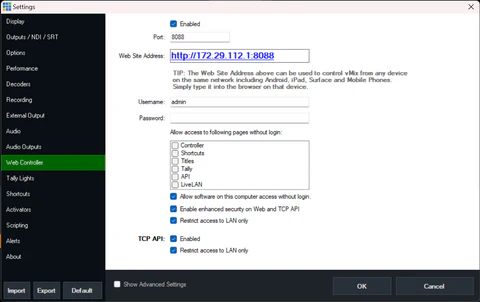
In vMix, open Settings > Web Controller, tick Enabled, and note the Port (8088 by default).
If ScoreSight runs on a different computer than vMix:
- use the vMix computer’s IP address as the host in ScoreSight,
- allow port 8088 through the firewall on the vMix computer, and
- if you set a Web Controller Username/Password, tick Allow access to following pages without login: API. ScoreSight doesn’t send a vMix login.
2. Add a title and note its field names
Add a title input in vMix, for example one of the built-in scoreboard titles:
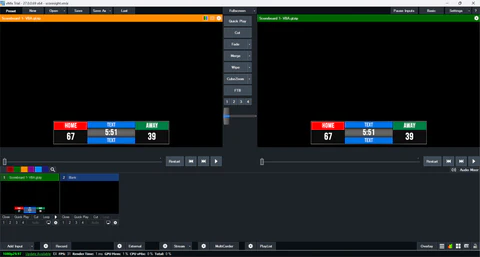
Right-click the input and open the Title Editor to see the names of its text fields:
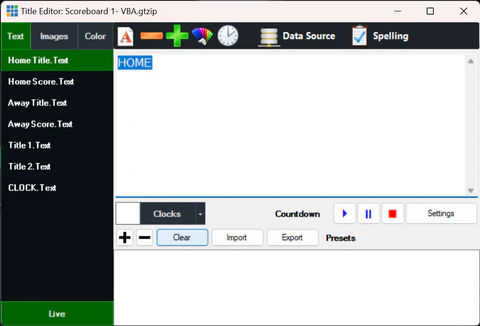
Field names in the Title Editor look like Home Score.Text, Away Score.Text or CLOCK.Text. You need these exact names, including the .Text suffix.
The repository includes a ready-made vMix preset, scoresight.vmix. It contains a scoreboard title with the fields Home Score.Text, Away Score.Text, CLOCK.Text, Home Title.Text, Away Title.Text, Title 1.Text and Title 2.Text. Open it in vMix (Open preset) to get started quickly.
3. Configure vMix in ScoreSight
Set up your boxes first (see the Quickstart):
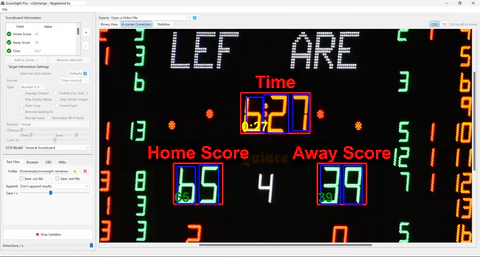
Then select vMix in the Outputs tab on the right (or click vMix in the status bar). Its settings show under the list:
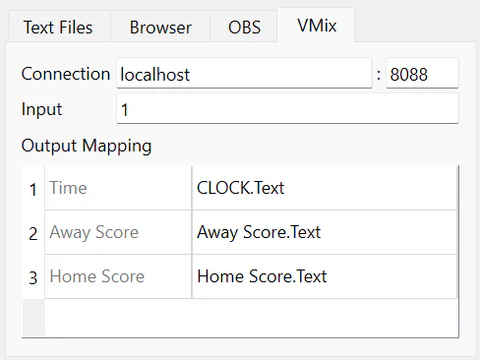
| Setting | Value |
|---|---|
| Connection | Host (localhost or the vMix computer’s IP) and port 8088 |
| Input | The vMix input that holds the title: its number (as shown on the input in vMix), its name, or its key |
| Output Mapping | One row per ScoreSight field. In the right column, type the exact vMix field name, for example Home Score.Text. The default is the ScoreSight field name, which usually needs the .Text suffix added. The mapping the table shows is used right away, even for rows you haven’t edited. Clear a cell to stop sending that field |
| Also resend unchanged values (was Send Same?) | Off: send only new values. On: also resend unchanged values on every cycle. This is useful if someone else may overwrite the title in vMix |
Click Start vMix (or the switch of the vMix row) to begin sending (the button changes to Stop vMix). Click it again to stop sending without losing the settings.
A change to the host, port or input takes effect when you press Enter or leave the field. Spaces around the values are ignored. You don’t need to stop and start the output: the mapping and the Start/Stop state are kept.
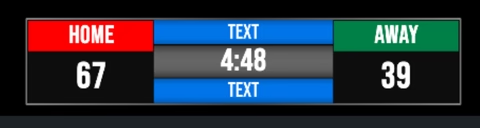
Once the mapping is complete, the title updates live in vMix:
Is vMix receiving the values?
The vMix row of the Outputs list (and vMix in the status bar) shows it:
| State | The vMix row says |
|---|---|
| ● Working | Sending to localhost:8088, input 1, and when the last value was sent (2 s ago) |
| ◐ Waiting | Waiting for a new value for …: started, but no field changed yet. vMix gets a value when it changes (or every time, with Also resend unchanged values) |
| ▲ Retrying | Can’t reach 192.168.1.40:8088 · retrying or No answer from … · retrying: vMix can’t be reached. ScoreSight retries by itself and sends the latest values when vMix is back |
| ▲ Needs attention | No fields to send (nothing mapped), or 1 of 4 failing: … when some fields arrive and others don’t |
| ■ Not working | Port 8099 is vMix’s TCP API: use 8088, HTTP 401: vMix asks for a login, or another error vMix answered with |
When vMix is selected and has a problem, a box over its settings says what to do. Hover the row for the full error.
What ScoreSight sends
For every field with a new value (and a mapping), ScoreSight sends an HTTP GET request to:
http://<host>:<port>/api/?Function=SetText&Input=<input>&SelectedName=<field name>&Value=<value>
For example http://localhost:8088/api/?Function=SetText&Input=1&SelectedName=CLOCK.Text&Value=4%3A27. The field name and the value are percent-encoded, with spaces as %20 (SelectedName=Home%20Score.Text); ScoreSight 0.2.0 and earlier sent spaces as +, which vMix may show as a literal +. You can paste such a URL into a browser to test vMix without ScoreSight. See the vMix Developer API documentation for details.
Requests are sent in the background with a 2-second timeout. If vMix is busy or unreachable, ScoreSight keeps reading, keeps only the latest value of each field, retries with an increasing delay, and sends the latest values when vMix responds again. Any 2xx response counts as success. Errors are logged at most once every 30 seconds.
Alternative: vMix Data Sources
Instead of the direct integration, you can feed vMix titles from ScoreSight’s HTTP server or files with vMix Data Sources (Settings > Data Sources, then bind title fields in the Data Source’s mapping). vMix reads one row per poll and binds each column to a title field.
| Data Source type | URL or file | Notes |
|---|---|---|
| XML | http://<scoresight-ip>:18099/xml?pivot&all, XPath /data |
One element per field: the names have no spaces (HomeScore, AwayScore) |
| Excel/CSV (from a URL or file) | http://<scoresight-ip>:18099/csv?pivot&all, with first row as column names |
The columns are the field names (Home Score) |
| JSON | http://<scoresight-ip>:18099/json?pivot&array |
vMix JSON Data Sources need an array of rows. /json?pivot returns a single object, which vMix doesn’t read as a row; ?array wraps it: [{"Home Score": "21", ...}] |
| Text/CSV/XML file | results.csv (or results.xml) from the Text Files output |
results.csv has a Timestamp column first |
- Use
&all(or the JSON?array, which includes it): every field is then always there with its last good value. Without it, a field whose reading is rejected for a moment is missing from that poll, and vMix may blank its title field. - Set the Data Source’s refresh interval to 250–500 ms.
These setups are untested: they follow vMix’s documentation (and, for JSON, a vMix forum answer saying it needs an array). The direct integration above sends each change as it happens, and is the one we recommend.
Troubleshooting
The vMix row of the Outputs list says what is wrong (see above). vMix errors in the log start with vMix:.
| The vMix row says (the log says) | Fix |
|---|---|
Port 8099 is vMix’s TCP API: use 8088 (vMix: VMixTCPPortError: localhost:8099 answered like the vMix TCP API ('VERSION OK')...) |
You are pointing at the vMix TCP API port (8099). Change the port to the Web Controller port, 8088 by default |
Can’t reach … or No answer from … (vMix: ConnectionError: ..., connection refused, or a timeout) |
The vMix Web Controller is not enabled, the port is wrong, or a firewall blocks it. Open http://<host>:8088/api in a browser to test |
HTTP 401: vMix asks for a login (vMix: OutputError: SetText 'Home Score.Text' returned HTTP 401, or 403) |
The Web Controller requires a login. Allow API access without login (see step 1) |
| ◐ Waiting for a new value, nothing changes in vMix | The mapping names don’t match the Title Editor (remember .Text), or the Input is wrong. Values are sent when they change: turn on Also resend unchanged values to send them every time |
| ○ Off | Click Start vMix |
| Some fields update, others don’t (1 of 4 failing: … when vMix answers some of them with an error) | Check each mapping row against the Title Editor: empty cells are not sent. Readings that are yellow or red in ScoreSight are not sent |