Quickstart
This walkthrough takes you from a fresh install to live scores in your graphics in about five minutes.
Steps
1. Open a source
Start ScoreSight. The viewer shows a card, Open a source to begin, with the three steps of this guide; each gets a check mark when it’s done. Choose where the picture comes from, with the card’s buttons or in the Source drop-down at the top of the viewer:
- Camera: a camera or capture card (listed by name), or an NDI source,
- Video file… (
.mp4,.avi,.mov), which is useful for practising with a recording, - Stream URL… (Stream URL (RTSP, HTTP)… in the drop-down) for IP cameras and network streams,
- Screen… (Screen capture… in the drop-down) for a window or your whole screen (Windows and macOS).
Cameras and NDI sources are found in the background, so they may appear in the list a moment after the window opens. The picture appears in the viewer after a moment, the green dot before the drop-down shows that frames arrive, and the rest of the window becomes active. If your camera isn’t listed, click Reload sources (⟳, or F5). If the source can’t be opened, a red banner says why, with Retry. More details: Video Sources.
2. Straighten the picture (optional)
The Adjust picture row above the picture helps when the camera is not square to the scoreboard:
- Rotate turns the picture in 90° steps.
- Crop removes the edges: click Drag to crop in the row that opens, then drag around the scoreboard on the whole picture. Reset crop… removes the crop again.
- 4-corner: click it, then click the four corners of the scoreboard. ScoreSight warps the picture so the board becomes a flat rectangle.
- Stabilize removes small camera bumps and drift.
Do this before you draw boxes, because boxes are placed on the corrected picture. More details: Viewer & Image Tools.
3. Add boxes over the values
The Fields list on the left contains the standard fields: Home Score, Away Score, Time, Period, Home Fouls, Away Fouls and Shot Clock.
- Click a field, for example Home Score. Over the picture, the pointer becomes a crosshair.
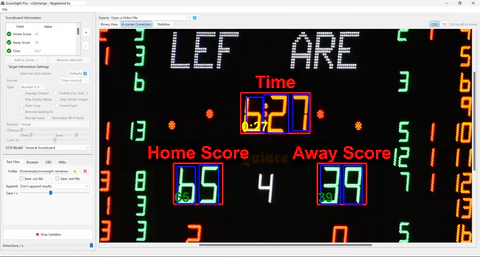
- Drag over the home score on the picture, leaving a small margin around the digits. A box appears where you dragged, with a label under it, and the Box tab on the right shows its settings. (Or double-click the field: its box appears in the middle of the picture, ready to be dragged over the digits.)
- To adjust it, drag the box or its edges and corners. Alt+drag (⌥ Option+drag on a Mac) draws it again.
- Repeat for every value you need.
Need something that isn’t in the list, such as “Downs”, “Yards to go” or “Balls”? Click + to add a custom field, press F2 to rename it, then place it on the picture the same way. More details: Detection Boxes & Templates.
4. Check the readings
Within a second, each box’s label shows what ScoreSight reads, and the Value column in the field list shows the latest good reading. The symbol at the start of each label (and next to the value in the list) tells you its state:
| Symbol | State | Meaning |
|---|---|---|
| ✓ (green) | Success |
A new value was read and sent to the outputs. |
| = (grey) | SameNoChange |
The same value as the last good reading, for example with Update on change on (see Outputs). |
| ! (amber) | FailedFilter |
Something was read but rejected by the box’s Format, or by its confidence threshold. The label shows the rejected text in quotes. |
| ∅ (red) | Empty |
Nothing was read, or the box is over a blank area. |
If readings are wrong or unstable:
- Click Binary View to see the black-and-white image the OCR engine reads. Digits should be solid and clearly separated from the background.
- Select the box and, in the Box tab on the right, set its Type (Number, Time or Text) and a Format preset, such as Time mm:ss or Score ddd.
- Try another OCR model (under All boxes, at the bottom of the Box tab): PP-OCR (accurate) if PP-OCR (automatic) reads with fast (the list says so) and your computer can afford it, or one of the Tesseract models (Daktronics for segment/LED digits, General Scoreboard Large for big digits) with their Image cleanup settings. See OCR Models.
The Recognition Tuning guide walks through this step by step.
5. Send the results to your graphics
Pick one or more outputs in the Outputs tab, on the right next to the Box tab. Select one to show its settings under the list, and turn it on with its switch:
| Output | What it does | Guide |
|---|---|---|
| Text files | Writes <Box Name>.txt, and optionally results.csv and results.xml, to a folder |
Text, CSV & XML Files |
| HTTP server | Serves live HTML, JSON, XML and CSV at http://localhost:18099 (or the port set with --port). Always on |
HTTP Server API |
| OBS | Updates OBS text sources over the OBS WebSocket | OBS Studio |
| vMix | Updates vMix title fields through the vMix Web API (port 8088) | vMix |
| UNO | Updates an overlays.uno control app | Overlays.uno |
| HTTP API | Sends the readings to your own HTTP endpoint | Outbound HTTP API |
Each row shows whether that output works: ● working, ◐ waiting for a value, ▲ retrying or needs attention, ■ not working (with what to do), ○ off. The status bar repeats it for every output; click one to show its settings. See Outputs.
The quickest test: open http://localhost:18099/json?pivot in a browser on the same computer. You should see something like {"Home Score": "65", "Away Score": "39", "Time": "4:27"}.
6. Keep your setup
ScoreSight saves your boxes and settings automatically and reopens the last source (camera, NDI source, URL stream, video file or screen capture) at the next start. To back up a box layout or move it to another computer, use File > Export field layout…, and File > Import field layout… to load it again. See Settings, Files & Command Line.
Global controls worth knowing
| Control | What it does |
|---|---|
| Detections / s | How many times per second the boxes are read (1–15, default 5). Under All boxes, at the bottom of the Box tab. |
| Update on change | When on (default), a value that hasn’t changed is marked “unchanged”, and vMix and UNO don’t resend it. Under All boxes. |
| Pause outputs | At the top of the field list. Freezes all outputs at their current values, for example during a timeout or replay (Ctrl+Shift+P). The field list keeps updating; an orange banner and the status bar show that the outputs are paused. Click Resume outputs to continue. |
| OCR model | The recognition model used for all boxes, under All boxes. See OCR Models. |
| Sport | Under All boxes: choose the sport and ScoreSight follows the game (each score, the periods, the clock, the final buzzer). See Game & Sports. |
| Status bar | At the bottom of the window: the source with its resolution and frame rate, how many times per second the boxes are read, PAUSED while the outputs are paused, the HTTP server’s address with a Copy button, and Feedback, which opens ScoreSight’s Discussions on GitHub to ask a question or share an idea. |
| View > Live layout | For the game (Ctrl+2): large readings and the state of every output next to the picture. Ctrl+1 goes back to the Setup layout. See Setup and Live layouts. |
| Hold value… | Right-click a field (or Ctrl+H) to send a value you type instead of its readings, for example to correct a misread, until you click Release. See Hold value. |
| View > Appearance | Switch between the System, Light and Dark colour schemes. |
Where to next
- Recognition Tuning: get rock-solid readings.
- Game & Sports: choose the sport and follow the game.
- Outputs: all integrations in detail.
- Performance Tuning: understand the on-screen statistics and reduce CPU use.